Bolton Home Page Icon

Japanese for your Mac: Dictionary Software

This page describes Mac Japanese-English dictionary software. (If you have not enabled Japanese input on your computer, visit the first page of this site first to find out how.) The full site contents is as follows:

Apple's Dictionary Program

Starting with version 10.5, Mac OS comes with a dictionary application (called simply "Dictionary."). In addition to an English dictionary, it includes several Japanese dictionary files: a large Japanese dictionary, a usage dictionary that distinguishes usage for similar words, an English-Japanese, and Japanese-English dictionary. (These are Daijisen, Ruigo reikai jiten, and Progressive waei eiwa chûjiten, all published by Shôgakukan.) If you can read enough Japanese to use all three of these (the first two are Japanese only), then this is a formidable combination.

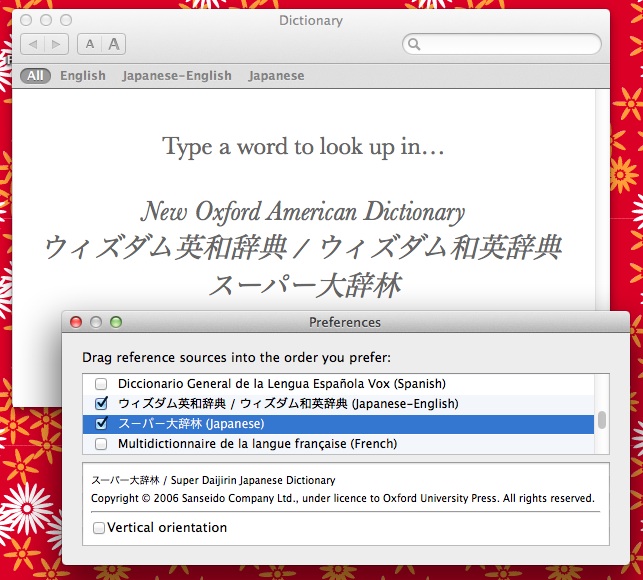
The Japanese dictionaries are not activated by default; to enable them, you must open the Dictionary application, then open its preferences from the file menu and check the dictionaries you want to use. Drag the Japanese-English and Japanese dictionaries so that the one you prefer to use as a default is on top.
Other Tricks for using Dictionary

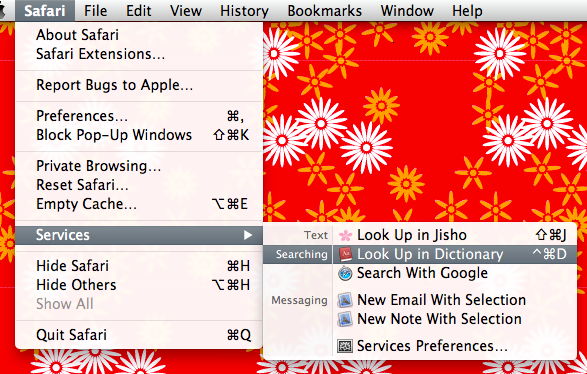
Try this: highlight a word in Safari and select "Look Up in Dictionary" from the Services menu (under the Safari menu just to the right of the apple menu), or control click on the word and select Look up in Dictionary from the pop-up menu, or just press the Dictionary shortcut command-control-D: Dictionary will open with a definition of the word displayed.

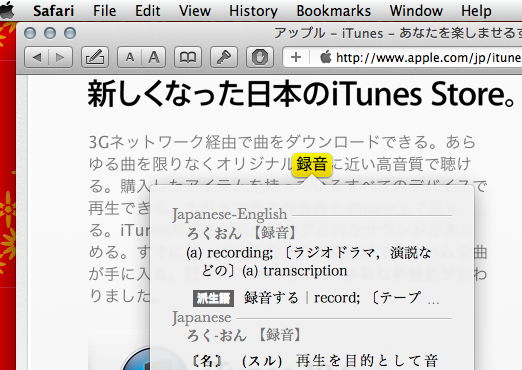
You can also set the Dictionary application's preferences so that the contextual menu activates a "dictionary pane" (one of the few options in Dictionary's simple preferences): then if you invoke Dictionary by control-clicking on a highlighted word, the definitions will appear in a stylish (if tiny) pop-up window right in your application. If you press command-control-D without highlighting text and then hold those keys down as you move the cursor around the page, it will generate a pop-up dictionary pane for every word you mouse over!

Other Japanese Dictionary Software

Below are a few different inexpensive dictionaries with various features keyed more toward Japanese language learners, like the ability to create vocabulary lists. Most of these are freeware or shareware. You can try them for free.

JEDict. This is is one of the most full-featured standalone dictionaries, with a number of great features useful for beginners, like rômaji pronunciation display, a vocabulary quiz feature keyed to the different levels of the Japanese langage proficiency test, etc. It has an integrated kanji dictionary, which adds stroke order animations and diagrams and a handwriting/mousewriting recognition feature for kanji lookup. The neatest feature is an integrated web browser that can display Japanese pages and show the definition of any word you highlight in a slide-out drawer attached to the browser window. And you can install additional dictionaries too. (See below for information about how to download these.) $25 ($15 for students, last time I checked). I use this

Jisho can translate Japanese to and from a range of different western languages. It can also display romaji readings for those who cannot easily read kana, and you can even enter Japanese search terms in rômaji. It is updated regularly. It has an attractive interface too. Version 4.0 is $14.

Tagaini dictionary is an open source, cross-platform dictionary. I have not tested this thoroughly, but it has some very nice features, including animated stroke order diagrams and ways to flag vocabulary for review. Free.

Tensai has an integrated kanji dictionary, and a nice interface designed to make it easy to create and maintain several separate vocabulary lists. Last time I looked, it had not been updated in a while. Version 0.93 is $30.

Using the Dictionaries with Browsers, Email, etc.

screen shot Most of the dictionaries above have some features that allow them to be called from within other applications, like web browsers, or email clients.

This is through the Services menu, which appears in all applications (look under the first application menu item just to the right of the apple menu, and you should see "Services" about halfway down). After you install a program like Jisho, for example, will find an item "Look up in Jisho" appears the services menu. When you highlight a word on web page in Safari, for example, and select this item from Services (or press its keyboard shortcut, command-shift-J), Jisho will open and display the definition. (If you don't have a word highlighted or if the application you are using does not support Services, the option will be absent or greyed out.) You may also be able to see services commands in a pop-up menu when you control click on a highlighted word. All this may work more reliably in some applications than in others; if it does not work in Firefox, for example, try Safari. (And it probably won't work in MS Word.)

One problem is that the initial keyboard shortcuts assigned to these services sometimes conflict with existing shortcuts, so they don't work. Fix this by reassigning the shortcut for the service: first, open "System Preferences," select the "Keyboard" icon, click on the "Keyboard Shortcuts" tab, select "Services" in the lefthand pane, find the relevant shortcut in the righthand pane, and double click directly on its keyboard shortcut. The shortcut will become editable. (Earlier versions of Mac OS require require a similar but slightly different procedure.)

The services menu has been a little hard to use in the past, but the menu and its settings dialog have improved in Mac OS 10.6.

Dictionaries on the Web

There are many web sites providing Japanese English dictionary services. A popular Japanese one is on NTT's goo web portal. The goo dictionary incorporates several large dictionaries, including the Daijirin Japanese dictionary and the EXCEED J/E and E/J dictionaries (all published by Sanseidô).

Another popular option is the Eijirô dictionary on ALC's Home Page. Eijirô is a large proprietary dictionary assembled by translators and users, said to be very complete and particularly strong on technical terms. (It has 8 entries beginning with "deconstruct," for example, including one for the Woody Allen movie Deconstructing Harry.) To look up a term in Japanese, you need to enter it in kanji.

Most other English-Japanese dictionary sites use the same public dictionary files as the dictionaries described on this page--the EDICT and JMDICT files described just below. I won't try to give an overview of these web sites here, but see the discussion of web translation sites on my browsers page for things these sites can do that the downloadable dictionaries described here cannot.

EDICT and JMDICT Dictionary Files

Most of the dictionaries above (besides Apple's Dictionary and goo) use the same underlying dictionary files, called EDICT and JMDICT. (Don't confuse these names with JEDict, one of the dictionary programs described above that uses these files.)

EDICT began in the very early days of the web as a project led by Jim Breen at Monash University, to construct a public Japanese-English dictionary from user contributions. Over the years it has grown to a point where it can compete with paper dictionaries in terms of accuracy and completeness, and is still being expanded and updated by users. EDICT is now a subset of the Japanese Multilingual Dictionary (JMDICT) project, which is in a different format (Unicode XML) and contains not only English equivalents of Japanese words but also equivalents in other Western languages. Some of the dictionary programs above use the EDICT file, others the JMDICT file.

Detailed information about the dictionary files is available on developer Jim Breen's EDICT and JMDict page. The dictionaries are are stored on the ftp archive at Monash University. The ftp archive also includes many small to medium specialty dictionaries in fields ranging from Buddhism to concrete engineering. The most useful one I've found is a dictionary of Japanese names, enamdict, which you can download from this link: ftp.monash.edu.au/pub/nihongo/enamdict.zip.

If you are using the JEDict dictionary reader described above, you can install these additional dictionaries as add-ons and use them together with the main EDICT or JMDICT dictionaries. See the program's documentation for information on how to install new dictionary files after you've downloaded them.

Back to Christopher Bolton's Home Page