This page contains information for using Japanese on an American Macintosh. It is aimed at students, teachers and others who use a Mac predominantly for English, but also want to read, write, browse, and email in Japanese. The emphasis is on simple, less expensive software that is readily available. This page contains general information. The pages underneath this one contain progressively more detailed or technical material.
As time goes on, using Japanese with the Mac is becoming more and more seamless or transparent. Some of the things described below relate to earlier Mac software or systems. (These are clearly indicated.) I've kept these not only for people with previous systems, but also to help readers sort the new from the old. There are a lot of pages like this one on the web, in Japanese and English, but many of them have become completely outdated as the Mac has changed.
I am a professor of Japanese at Williams College. Many years ago I worked briefly as software developer, and I've been using Apple computers since the early days. The programs I use most often are indicated with this icon:
I've tried most of them on a pretty wide range of systems over the years, most recently a MacBook Pro running Mac OS 10.4 (Tiger). If you are using Mac OS 10.5 (Leopard), some of this information may be slightly out of date. If you have questions or comments about this site, please feel free to email me at bolton at this domain. If you link to this site, I would be glad to hear about it.
This page was last updated on 12/18/07 .
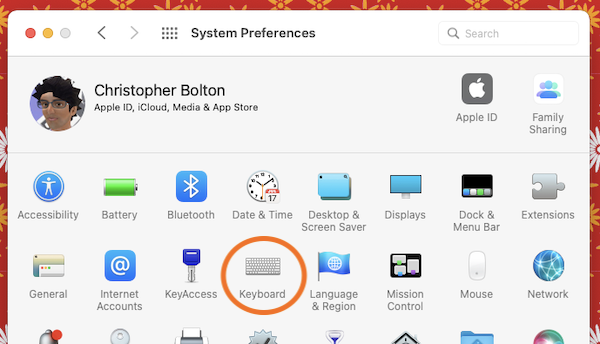
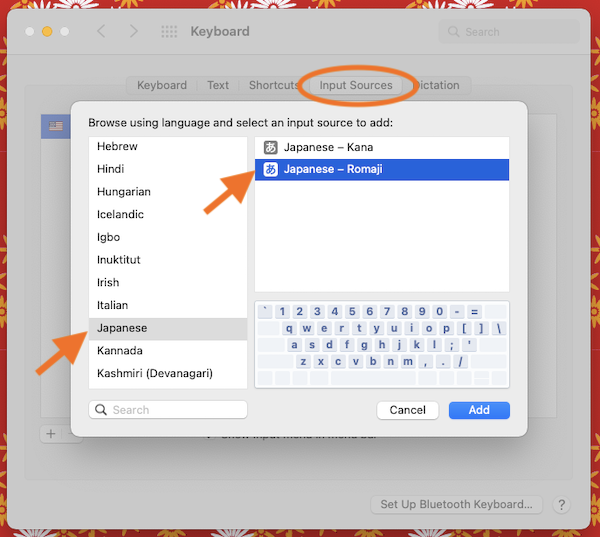
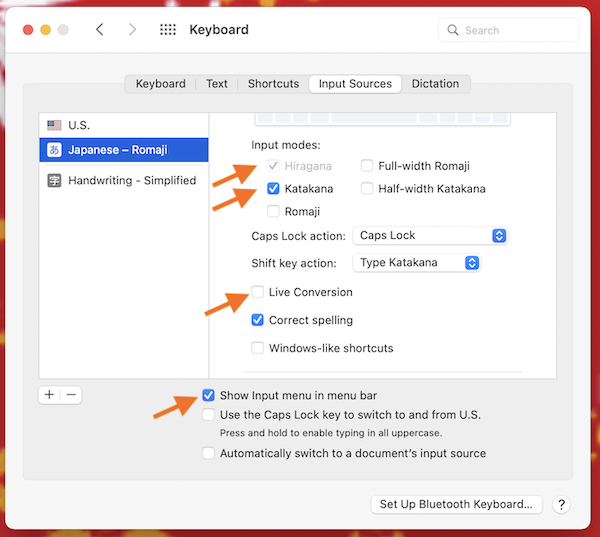
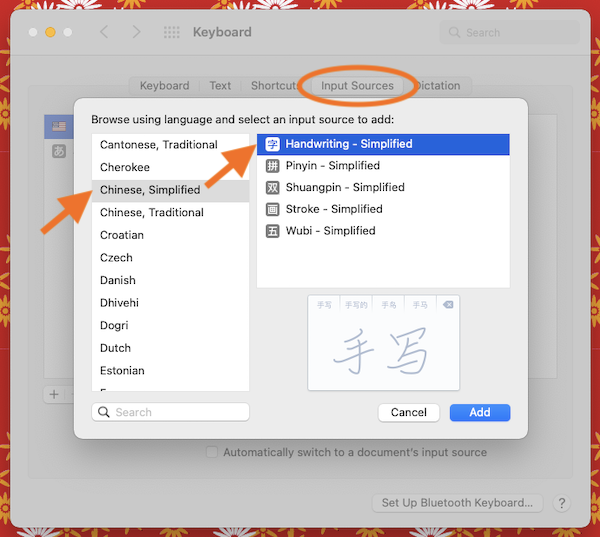
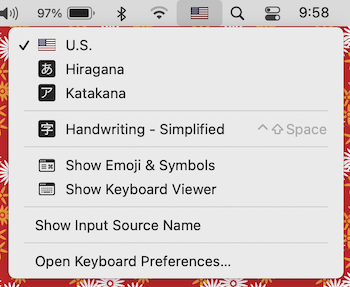
Mac OS X comes installed with support for reading and editing Japanese--in documents, in email, and on the web. Support for Chinese, Korean and other languages is also included. To activate these languages, click on the international icon in the System Preferences, and select the Input Menu tab (Apple Menu > System Preferences > International > Input Menu tab). Now check the box next to the languages you want to use. Also check the option to show input menu in menu bar. Click the images below to enlarge them and see how to do this.
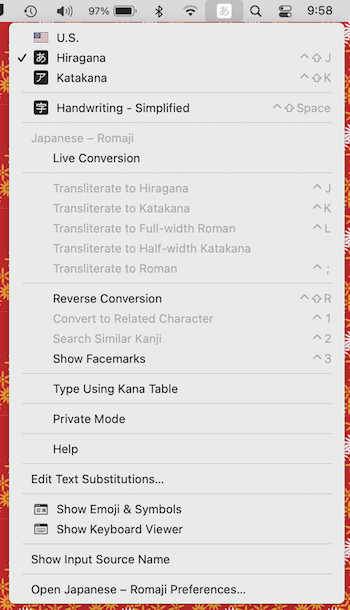
You can now use the menu below (which now appears in the upper right of the menu bar) to select the language you want to type in.
Here's an optional tip: there is a keyboard shortcut to switch between languages without using this menu. It is Apple-space bar. Unfortunately, it does not work in Mac OS 10.4 Tiger, because the same shortcut is assigned to Spotlight. If you want to fix this conflict, click on Keyboard & Mouse in System Preferences, select the "Keyboard Shortcuts" tab, and uncheck the Spotlight shortcut or reassign one of the conflicting shortcuts, as shown below.)
If you don't know how to input text in Japanese, the input menu has a help option. In Mac OS 10.5 (Leopard), the help is available in English or Japanese, but in earlier systems there is no English help for Japanese input. If you have an earlier system and cannot read the Japanese help easily, you may want to consult Apple's Japanese Input Method Guide, which is written in side-by-side English and Japanese. It was written for earlier systems, but the section on entering Japanese text is still a good introduction. You can download it from Apple at http://docs.info.apple.com/article.html?artnum=50037
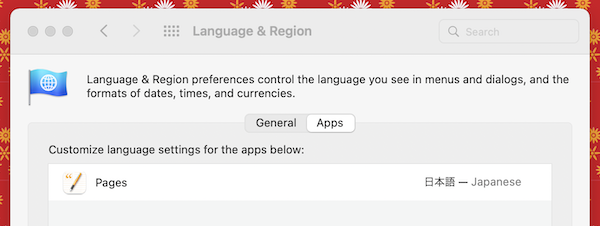
Many applications than run under OS X can use Japanese; some of these are described below. Often you can switch an application's menus so they appear in Japanese as well, if you want. Select the application's icon in the finder and choose Show Info from the File menu, then look in the languages pane, shown below; see if Japanese is listed, and check the box next to it.
Now go to Apple menu > System preferences > International > Languages. Add Japanese to the list of languages, if it does not appear there already. If you drag Japanese above English in the list, the finder and many other applications will open next time with Japanese menus. Even if you do not want Japanese menus, make sure Japanese appears somewhere in your list of languages. Just having it there unlocks Japanese features in certain software, like Japanese encoding in Apple's Mail application. Click the illustration below for a larger picture of the whole pane.
Mac OS X improves on previous versions of Mac OS by supporting Unicode, an encoding system that covers Japanese and many other languages in a single standard. For more about this, see the Encoding and Unicode page on this site.
In Mac OS 9--and that includes the Classic Environment that runs older applications within OS X on older PowerPC Macs--you can read and write use Japanese, but you need to take extra steps to make sure these are included when you install or upgrade the system. If you need some guidance on how to install these options on an older Mac OS 9 machine (using the OS 9 install CDs), Nisus Software site has an illustrated guide. If you want to install Japanese into the classic environment of a Power PC OS X machine, use the "Install Language Kits" utility you can find on the hard drive in Applications (Mac OS 9)/Apple Extras/Language Kits. None of this is an issue with the most recent intel-based Macs, since they do not run OS 9 or the classic environment, and so do not support OS 9 applications.
Mac OS 8.5 and 8.6 contained support for browsing the web in Japanese; Apple's Japanese Language Kit used be sold separately, and allowed you to write in Japanese with these systems (or read and write with even earlier systems).
Once the system is Japanese enabled, you can view web pages in Japanese with an ordinary Macintosh browser. Japanese support used to vary a lot from one browser to another, but now most of them can read Japanese pages. Which you use is largely a matter of taste. Most are free or have a free version. Most also have a localized Japanese versions of the browser intended for use in Japan, with menus and dialogs in Japanese. But in general, you don't need these just to view Japanese pages; the English versions of these browsers can display Japanese too.
In order to display a Japanese page correctly, the browser needs to realize that it is a Japanese page and figure out which of several possible encodings are used to represent the Japanese characters. For help with that, see my help page for making your browser read Japanese.
All of the following browsers support Unicode and so can display Japanese and other Asian languages.
If you know how to write HTML and you want to write your own web pages in Japanese, see the separate page on Tips for Authoring Japanese Web Pages.
For help understanding web pages in Japanese, there are a number of ways to generate word lists or pop-up translation cues for Japanese text or Japanese pages.
Once you install the Japanese language abilities in your Mac system, you can write (simple) Japanese documents with a wide range of word processors. You can start off experimenting with Apple's TextEdit program that comes with OS X. More elaborate options include the following.
iText Express is a free Japanese word processor with English menus and documentation. It combines the simplicity of TextEdit with some advanced word-processing features, including vertical text and Japanese manuscript (genkô yôshi) layout. (The latteris a featuer even MS Word does not have.) iText Express can save files in rtf, unicode, and other formats. The developers also produce more powerful shareware versions of the program, iTextPro and LightWayText (about $15 and $25, respectively).
Microsoft Word. For a more full-featured word processor compatible with Japanese, MS Word X and Word 2004 include a lineup of features for working in Japanese, like vertical text, "ruby" or furigana and special text formatting not used in English. To activate these features you need to use a program called the Microsoft Language Register (included on the install CD). Just Copy that program from the CD to your hard drive and drag your MS Word application icon on top of it. Starting with the 2004 version, Word includes improved support for Unicode.![]()
Nisus Writer. For a long time before the advent of Mac OS X, I was a faithful user of Nisus. Earlier versions had inline Japanese input and specialized Japanese features long before MS Word. Microsoft Word has caught up, though, and now it seems to have the edge over Nisus in terms of Japanese features. Nisus was very slow to develop an OS X version of the program with full Japanese functionality, but the most recent versions can finally open and read the complex Japanese documents I created with early versions. Nisus is still less expensive than Word, and if you have an older system, Nisus Software usually offers an earlier OS9/Classic version of this word processor (4.1) in a free download on their website.![]()
Pages is Apple's recent Word Processing and page layout software. I have used it very little, but it does support Japanese.
Many other word processors and text processors that support Unicode can work in Japanese. These range from simple freeware editors to full packages competing with MS Word, but most don't have MS Word X's special editing features customized for Japanese, like vertical text. To find these programs and distinguish between them, there are some fine pages on Mac Unicode support. An excellent one is Alan Wood's Unicode Page, which has a very detailed section on Multilingual Word Processing under Mac OS X, well as separate sections on Unicode in Mac OS 9, Windows, Linux, etc.
If you want a program optimized for writing in Japanese, of course you can also purchase a full-featured Japanese word processor localized for sale in Japan, like EG Word. See the Other Resources link below.
I don't do any design work, so I mostly make do with the Japanese fonts distributed with OS X. But Hakushu Shotai has some interesting Japanese fonts you can download free. The site is in Japanese, and the free fonts generally only include a subset of the most common kanji.
There are several choices of email programs with at least some degree of Japanese support, but Japanese email is not an exact science. To support Japanese, an email program has to be able to enter Japanese text as you compose the message, then convert the mail to a common Japanese format (or encoding) when it is sent, and finally read mail in all the commonly encountered Japanese encoding. Whether your mail is readable by the recipient depends to some extent on compatibility between what your program sends and what the recipient's can read. Mail programs are harder to test than browsers or other software, so this list is not complete, and I don't have direct experience with every one of these programs. There are some email clients that advertise themselves specifically as multilingual, but the safest bet is probably to use a client that is widely used (and thus tested and supported) in Japan.
Apple's Mail application included with Mac OS X can send and receive Japanese mail. To use Mail with Japanese, make sure that besides activating Japanese input, Japanese is also one of the languages listed in the languages list in the international preferences pane (as shown above). Mail can read a wide range of incoming Japanese mail, and if a message does not display correctly, you can try viewing it in a different encoding, as in a web browser. You can also select the encoding in which you wish to send each outgoing mail message. (To see how to set encodings in a browser on mail program, see Page 2. For the curious, technical details about encoding are on page 3.) There is a problem with version 2 of Apple Mail (included with Mac OS 10.4 Tiger): if English is your system's primary language, Apple Mail may default to the wrong encoding, causing your message to be garbled for some Japanese users. See the note on Mail on the Encodings Page for more details. I use this on my home machine.![]()
If you want to switch to Apple's Mail application from Eudora or Thunderbird (described below) and transfer old saved messages to the new program, you might consider Andreas Amann's free Eudora Mailbox Cleaner. This is designed to help insure that your saved messages do not get garbled in the transfer from Thunderbird to Mail, Eudora to Mail, or Eudora to Thunderbird. It says explicitly that it works with Japanese versions of Eudora. I have not tested it, though I have seen problems in test transfers I tried without it, so it is worth a look.
Eudora. You can send and receive Japanese email with Qualcomm's email software Eudora, though these days you need the localized Japanese version of the program. This is still my program of choice. I've also used most or all of the Eudora versions described below over the last 14 years. However, I would recommend that new users not start out with Eudora, since its future is in question: Qualcomm recently announced that it will stop selling and supporting Eudora, and will make it a free open source program in 2007. Eudora's lead programmer has announced plans to create a version of the open source mailer Thunderbird (see below) with a Eudora-like interface.
Web-Based Mail. I sometimes use my browser to access web-based email services or assign my students to use these services for Japanese assignments. Options include Yahoo Mail, Hotmail, and Gmail. The latter two have Japanese interfaces available, and Yahoo has a separate Yahoo Japan site.![]()
I've investigated and/or tested the programs below, but I have not used them much at all. Most allow you to select encodings like Apple's Mail application.
Netscape and its open-source equivalent Mozilla are browser/email packages that can send and read Japanese email. Like Apple's Mail application, if incoming Japanese mail is unreadable, you can try to display it in a different encoding--a nice touch. Thunderbird is the Mozilla Project's standalone email program. It has a Japanese version, but I have not tested any version of Thunderbird. If you are switching to Thunderbird from Eudora and want to transfer saved Japanese mail, consider using Eudora Mailbox Cleaner, described above.
Outlook Express. This free Mac email software from Microsoft supports Japanese.
Powermail from CTM Development. Besides being able to send and receive Japanese email, Powermail has is able to import and export between a wide variety of email formats, which includes the ability to import Japanese email from Eudora.
Quickmail from Outspring has elaborate encoding settings that not only allow you to select from different encodings for your outgoing mail, but even adjust encoding automatically for different people you send mail to(!)
GyazMail . An attractive, cocoa-based client with English and Japanese versions. Inexpensive too. There used to be more of these small, stylish Japanese clients by individual developers, but this seems to be one of the last still in development.
Mailsmith by BareBones software seems to be one of the few major email programs that does not support Japanese.
I've only used one program, Apple's iChat. I've chatted (with other iChat users) in Japanese, and it's seamless. I've also tried video chat between America and Japan, using an iSight camera. Over my home DSL connection, it works like a charm. When I'm behind my university firewall, on the other hand, I've had problems even with U.S. video connections.![]()
Mac OS 10.5 (Leopard) comes with a Japanese English Dictionary included, but I have not tested this yet.
Many of the other Japanese dictionary programs available online use the same core dictionary file, called EDICT . I'll describe the underlying dictionary files first, and then the dictionary software available to read them.
EDICT is the result of an amazing project led by Jim Breen, to construct a digital public-domain Japanese-English and Kanji reference dictionary. Besides some obvious advantages such a dictionary has for lookup, the dictionary is constantly expanded and updated by its creators and users. It has a number of features useful to Japanese language learners, and several specialized sub-dictionaries for things like kanji, names, and technical vocabulary. Over the last fifteen years it has grown to a point where it can compete with many paper dictionaries in terms of accuracy and completeness.
EDICT is now a subset of the Japanese Multilingual Dictionary (JMDICT), which is a larger dictionary file in a more modern format (Unicode XML) and with additional information. For example, JMDICT contains not only English equivalents of Japanese words, but also equivalents in other Western languages.
You can sample the contents of EDICT at its web-interface, WWWJDIC Page, which lets you look up individual words or generate a vocab list for a longer text or a whole web page. See also the other web Translation sites discussed above, most of which seem to use some varient of the Edict dictionary.
You can also download the dictionary files to your own computer, along with a program to read them, so you can access them more quickly or when you are offline. Information about the dictionary files is available on developer Jim Breen's EDICT Page and his JMDict page. These pages includes links to download the dictionaries, which are stored on the ftp archive at Monash University. Jim Breen's descriptions of how everything fits together are rather brief, so I've provided some explanation at the bottom of this page. The links in [brackets] will download the file directly from the Monash archive.
JEDict. The name is confusingly close to the name of the dictionary project, EDICT, but JEDict is a program to read the EDICT dictionary files. It is the most full-featured Mac Program for this purpose, and is one of the easiest to get started with. JEDict comes bundled with the dictionary files. It includes a special interface for reading the kanji dictionary, and has a number of neat features useful for beginners, like the ability to create vocabulary lists, look up kanji without knowing the precise radical, see stroke order, etc. It also has good integration with other programs, so you can highlight a Japanese term in your browser, Eudora, MS Word, etc. and have JEdict pop up a definition for you. (Depending on the program and the version of JEdict, there are several nice options for invoking the dictionary and displaying the definition).![]()
Version 4, released recently, adds support for other kinds of dictionary files, rômaji pronunciation display, a kanji quiz feature keyed to the different levels of the Japanese langage proficiency test, and more ways to access JEdict from other programs. There is even an integrated web browser that can display Japanese pages and show the definition of any word you highlight in a slide-out drawer attached to the browser window. Version 4 was not entirely stable on my system, but there is also an earlier version available on the developer's site. You can try JEdict for free; the shareware fee if you decide to keep it is $25 ($15 for students), and well worth it. Finally, the program has great support from its dedicated creator, Sergey Kurkin.
There are a few other options for simple word lookup. None of them have the kanji lookup functions or the advanced features of JEDict, though some have interesting features of their own.
Most of the programs above come with a copy of the dictionary file. If they don't, you can download the dictionary using the links below, which point to files on the Monash FTP archive. You can also use these links if you want to update to the most recent copy of the dictionary, which is actually a good idea, since it is updated every few months.
For more detailed information, the following pages on multilingual computing are very useful, and were very helpful to me in writing these pages. They treat a variety of languages including Japanese.
If you are looking for localized Japanese versions of other commercial software, you might want to try AsiaSoft.